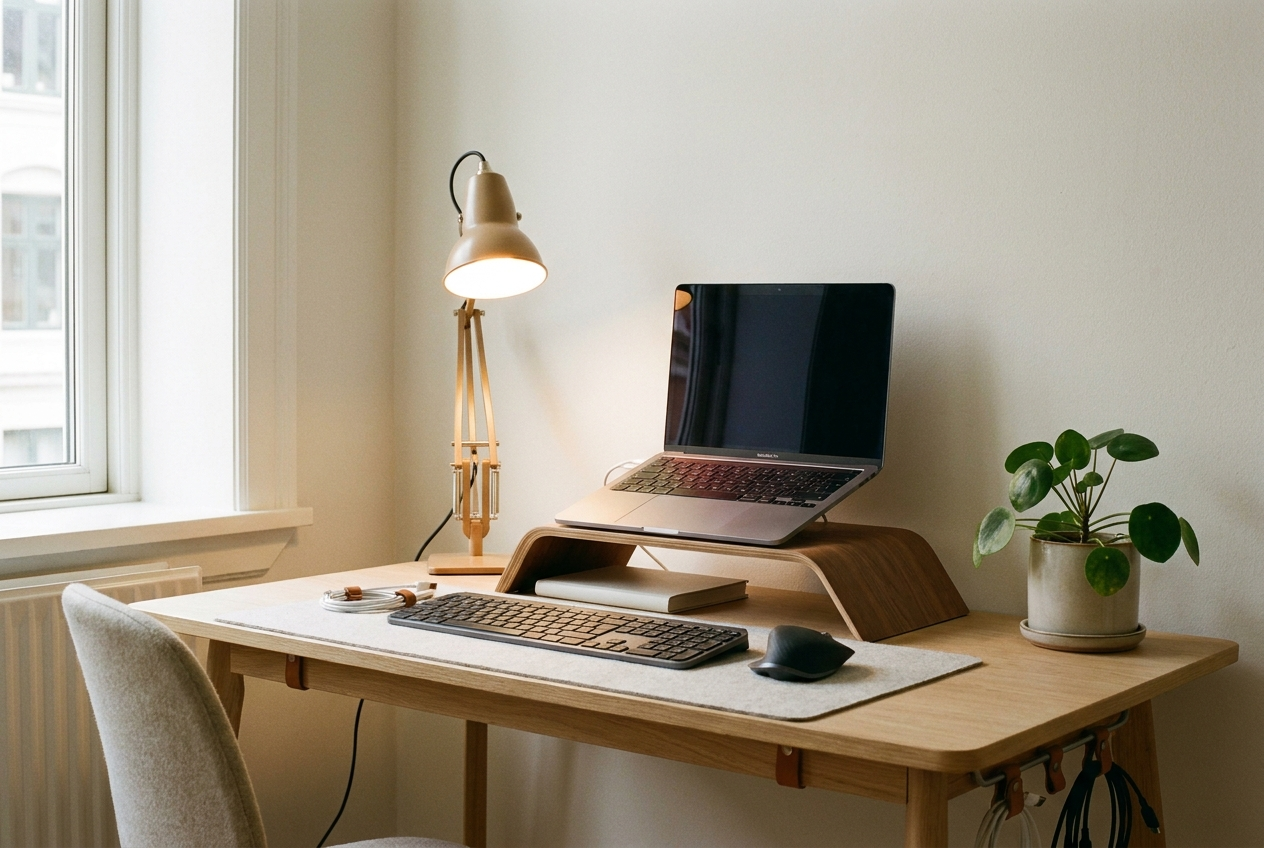
The back pain of people who work from home doesn't show up on day one. It arrives after a few weeks, once the body has finished compensating and presents the bill: a stiff neck in the afternoon, burning shoulders, wrists tingling in the evening. It isn't a matter of willpower or expensive chairs. It's a matter of geometry — where your eyes, hands and feet sit relative to the work you do — and of the habits that keep that geometry in place. This guide lines everything up: what to buy, in what order, by what concrete criteria, and what you can postpone. No hype, only choices that are tested, documented and useful.
Before the products: the geometry of the desk
Before opening your wallet, it helps to understand the position you're trying to build. A healthy setup isn't a collection of expensive objects: it's a series of angles and heights that, added together, take pointless work away from your muscles. The human body burns little energy staying still in balance; it burns a great deal staying still off-axis. Everything that follows exists to bring you back on-axis, and every purchase we suggest only makes sense read this way: you aren't buying objects, you're buying correct angles that hold over time.
The starting point is simple: the top edge of the screen should sit at eye level, or just below. Your forearms should rest parallel to the floor when your hands are on the keyboard. Your feet should touch the ground, knees at roughly ninety degrees. If even one of these three points fails, the other two deform to compensate, and your neck or wrists pay the price. It's a chain: you can't fix one link and ignore the other two, because the body redistributes the strain wherever it can.
Why the laptop alone is the most common trap
The laptop is designed to be portable, not to be used eight hours a day. Screen and keyboard are joined: if you raise the screen to the right height, the keyboard ends up too high; if you place the keyboard at the right height, the screen ends up too low and bends your neck forward. There's no way to win this game with the laptop alone. The fix isn't the willpower to sit up straight: it's separating the two. Screen on a stand, external keyboard and mouse on the surface. It's the first change that genuinely improves the day, and usually the cheapest. Anyone working long stretches from the sofa or the kitchen table with the laptop alone is building up a postural debt that comes due later.
The screen at the right height
You have two routes: an external monitor, or raising the laptop and adding external peripherals. Both work, as long as the top edge of the screen reaches your eyes. An external monitor is more comfortable because the screen is bigger and already meant to stay put; a laptop stand costs less and takes up less room, but forces you onto an external keyboard and mouse.
If you use an external monitor, check which outputs your computer has. Many ultrabooks and plenty of professional models expose a Mini DisplayPort or a compatible Thunderbolt port, while almost every monitor and TV accepts HDMI. This is where an adapter comes in: a Mini DisplayPort to HDMI adapter solves the most frequent case without changing cable or monitor. It's a few-franc part that makes the difference between "it won't connect" and "it just works." Keep one in the drawer: sooner or later everyone needs it.
Screen distance matters as much as height. The rule of thumb is an arm's length: if you reach out you should nearly touch it. Too close strains focus, too far makes you lean forward. And the screen should tilt slightly back, not toward you, so ambient light doesn't reflect off it. If you use two screens, set them at exactly the same level: the step between a monitor and a lower laptop is one of the fastest ways to twist your neck without noticing.
The angle of your gaze, the detail that saves the neck
The neck doesn't suffer from height in itself, but from the angle at which you hold your head to read. The head weighs several kilos: keeping it perfectly balanced above the shoulders costs almost nothing, tilting it forward a few degrees multiplies the load on the cervical muscles. That's why the top edge of the screen goes to your eyes and not to the centre: this way the line you read most often falls slightly low, the natural resting angle, and you aren't forced to lift your chin. If you notice your head jutting forward toward the screen, almost always the screen is too far, too small, or both.
External keyboard and mouse: the pair that saves your wrists
The moment the screen goes up, your hands lose their home: you can no longer use the laptop keyboard, because it's too high. You need an external keyboard and mouse. They don't need to be expensive or "gaming": they simply need to sit on the surface at the right height, so forearms stay parallel to the floor and wrists straight.
The most important criterion for the mouse is size: it should fill your palm, not force your fingers into a curled claw. For the keyboard, a low profile reduces wrist flexion; if you type a lot, an adjustable angle helps even more. A pad with a soft wrist rest completes the picture at almost no cost. For many people it's the wrists, not the back, that suffer first: that evening tingling is the signal not to ignore.
Wrist position matters as much as the choice of peripheral. The wrist should stay straight, neither bent up nor down: if the keyboard forces you to raise your wrists, lower the seat or raise the surface; if the wrists sink, a soft wrist rest brings them back in line. Keep mouse and keyboard close, on the same height band, so you don't keep reaching sideways — a gesture that tires the shoulder over time.
A note on purchase order
If your budget is limited, the order is clear: first raise the screen (stand or monitor), then add the external keyboard and mouse, then sort out the seat and feet, finally light and audio. The first two changes together cost little and solve the biggest part of the postural problem. Everything else is finishing — useful, but it can wait. The temptation to start from the most expensive or showiest object is strong; resist it, because geometry comes before aesthetics and before power.
Audio for calls: the most underrated piece
For someone working from home, audio quality in meetings isn't a cosmetic detail: it's the difference between being understood on the first try and having to repeat every sentence. The laptop's built-in microphone picks up the whole room — the fan, the keyboard, the echo off the walls — and projects your voice from far away. Listeners get tired, and you unconsciously raise your voice, wearing yourself out.
For one-to-one calls or for anyone wearing earphones all day, a pair of earphones with a microphone is the simplest choice. The mic sits close to your mouth, isolates the voice from background noise, and you can pocket them when you head out. Look for an in-line control to answer and mute without touching the computer, and a cable long enough not to tug at you when you shift in your chair.
For group meetings, or if having something in your ears for hours bothers you, a dedicated speakerphone is better: a speaker with an omnidirectional microphone that leaves your hands and ears free and comfortably covers a desk. It's also the solution that works best for people who alternate quiet focus with call time. Many models connect over USB and are recognised at once, with no drivers to install.
Where the microphone goes, in practice
A good microphone badly placed sounds worse than a mediocre one placed well. The rule is closeness: the nearer the source sits to your mouth, the less it picks up the room. With earphones, leave the little mic at chest height, not lower. With a speakerphone, keep it in front of you about half a metre away and clear of obstacles — not behind the screen nor buried under papers. Switch off or move the fan during calls, and if the room echoes a lot, a few soft elements (a curtain, a rug, a full bookcase) tame it better than any software.
Headphones and cables: the extension that avoids the acrobatics
If you use wired headphones or a pair of speakers, the jack is often too short or in the wrong spot. A 3.5 mm audio jack extension cable solves the cable geometry without moving everything: you plug the source where you want and the earpiece stays comfortable. It's one of those parts you don't think you need until you find yourself working sideways just because the cable won't reach.
Light: seeing without strain
End-of-day eye fatigue rarely comes from the screen itself: it comes from the contrast between a bright screen and a dark room. When the screen is the only light source, the pupil keeps dilating and contracting, and the eyes tire. The fix is simple: add light around the screen, not just on it.
A desk lamp with adjustable light, placed to the side and never pointed at the screen (to avoid glare), rebalances the scene. By day, keep the screen perpendicular to the window, not in front of it or with your back to it: in front, the window blinds you with reflections; behind, the sun overpowers your screen. In the evening, lower the colour temperature toward warm: it helps avoid overstimulating the eyes in the final hours. If you spend many hours on video calls, a soft frontal light on the face — never from above or behind — also improves how others see you, with no need for studio gear.
Seating, feet and the micro-adjustments that matter
The perfect chair exists, but it isn't mandatory for feeling well. What matters more is that your feet touch the ground: if the chair is too high for the screen to sit at the right level, add a footrest (even a sturdy box) so the knees stay at ninety degrees and circulation isn't pinched. The backrest should support the lumbar area; if it doesn't, a cushion behind the low curve of your back changes everything.
The detail almost no one fixes is the armrest: set well, it supports the forearms and takes weight off the shoulders, which otherwise stay tensed all day. Tense shoulders mean a tense neck, and a tense neck means an evening headache. If the armrests keep your shoulders raised, lower them until the shoulders drop on their own.
The rule worth more than any accessory
No setup, however perfect, replaces movement. The body isn't built to stay still, not even in the ideal pose. The most effective practical rule is to stand up every half hour, even just for thirty seconds: drink, look away from the window, loosen the shoulders. Set a reminder if you need to. The right setup reduces the harm of sitting; movement cancels it. A good habit is to hook your breaks onto events that already happen — the end of a meeting, sending an important email — so you don't rely on willpower alone.
Cable management and managing your space
A desk full of cables isn't only an aesthetic problem: hanging cables pull peripherals out of place, snag your legs, and every time you plug something in you grope for the right socket. Half an hour of cable management pays for itself in weeks of small annoyances avoided.
The basic moves: bundle cables with ties or trays under the surface, fix the loose end of cables you use often (the charger, the HDMI) to the edge of the desk so they don't fall behind when you unplug them, and keep a single quality power strip instead of scattered sockets. If you have several network devices or a small home server, it's worth considering a wall-mount rack cabinet: it gathers switch, router and accessories in one spot, out of the way and ventilated, instead of leaving them piled on the floor where they gather dust and kicks.
Data space that grows
People working from home pile up files fast: projects, backups, archives you can't keep in the cloud alone. A good-capacity internal drive for the desktop machine, or a unit to sit alongside the system, saves you from chasing your tail every month deleting things to make room. Plan your storage before it becomes an emergency: running out of space mid-deadline is one of the fastest ways to lose an afternoon.
Backup: the rule that never lets you down
Space isn't enough: you need a copy that survives a broken disk, a theft, or a mistake of your own. The most solid practical rule is three-two-one: three copies of the data that matters, on two different media, one of them out of the room or in the cloud. A second internal or companion drive is the first concrete step; setting up an automatic backup, even just weekly, takes backup off the list of things you'll "get to eventually" and makes it something that simply happens. The day a disk fails — and sooner or later it happens to everyone — that's the difference between a nuisance and a disaster.
Three setup profiles: mini, standard, advanced
Not everyone starts from the same point or has the same budget. Here are three levels, each complete in its own way, to choose by how much you work from home and how much you can spend now.
Mini setup: the minimum that makes a difference
It's the starting point for anyone working from home a few days a week or just getting going. All you need is a stand that raises the laptop to eye level, an external keyboard and mouse, and a pair of earphones with a microphone for calls. With this base you cover eye-and-hand geometry and voice quality, the two problems that weigh most and earliest. It costs little, takes up almost nothing, and breaks down in a moment if the desk is needed for something else. It's the level we recommend to anyone undecided: start here, live with it a week, then work out what you actually miss.
Standard setup: the full day, every day
For anyone working from home almost always, it's worth adding an external monitor (with the right adapter if the HDMI output is missing), a chair with lumbar support and a footrest if needed, an adjustable desk lamp, and a first pass of cable management. Here the setup stops being a compromise and becomes a place to spend eight hours without paying for it. It's the profile that covers the great majority of people working remotely on a steady basis: everything in the right place, nothing superfluous.
Advanced setup: space, data and quiet
For anyone handling a lot of files, doing a lot of meetings, or with network gear at home, you add a dedicated speakerphone for group calls, a good-capacity internal drive with automatic backup, and a wall-mount rack cabinet to keep network and accessories tidy and ventilated. It's the level of someone treating the setup as a serious work tool: each piece does one thing and does it well, and the whole holds up even on the busiest days without snags.
Common mistakes to avoid
The first mistake is buying the thousand-franc chair before raising the screen: the best chair in the world is useless if you keep bending your neck toward a low laptop. The second is the huge monitor placed too high: if you have to lift your chin to read the top line, it's too high, no matter how nice it looks. The third is ignoring audio until a colleague points it out in a meeting: it's solved with a few francs, yet it makes a disproportionate impression.
The fourth mistake is neglecting light because "you can see anyway": contrast fatigue is insidious, you only feel it at day's end and you blame the screen. The fifth, finally, is believing that buying the right things is enough: without movement every half hour, the perfect setup just becomes a more comfortable cage. The best posture is always the next one, the one you change by moving. And a sixth, quiet but costly: putting off the backup until it's too late.
Mini-FAQ
Do I really need an external monitor? No. A stand that raises the laptop plus an external keyboard and mouse fixes the geometry at lower cost. The external monitor adds comfort and space; it isn't mandatory.
Earphones or speakerphone for calls? Earphones with a mic if you wear headphones for long stretches or do one-to-one calls; a speakerphone if you prefer free ears or run group meetings. Many people keep both and choose by the day.
My laptop has no HDMI output: what do I do? Check whether it has a Mini DisplayPort or compatible port and use an adapter to HDMI. It's the cheapest, most immediate way to connect almost any monitor or TV.
How much budget do I need to start? With a laptop stand, an external keyboard and mouse and a good microphone you start with little and cover the part that weighs most on the body. You add the rest over time.
How often should I back up? Automatic and at least weekly for work data. Three copies, two media, one away from the desk: it's the rule that saves the day a disk gives out.
The selection
The Work-world pieces we use to build a healthy setup, chosen because they do one thing and do it well:
- Sony MDR-EX155AP earphones with microphone — for one-to-one calls and all-day headphone listening, with the mic close to your voice.
- Jabra Speak 100 speaker — a USB speakerphone for group meetings, hands and ears free.
- Delock Mini DisplayPort → HDMI adapter — connects the laptop to a monitor or TV when the HDMI output is missing.
- StarTech 3.5 mm audio jack cable — the extension that fixes the geometry of headphone and speaker cables.
- HPE 1.2 TB hard disk — reliable data space for projects, archives and local backups.
- StarTech wall-mount rack cabinet — gathers network and accessories in one tidy, ventilated spot.